Running Delta Executor on iOS is entirely possible in 2026, but it requires a process called sideloading since Apple does not permit script executors on the official App Store. Sideloading lets you install apps that are not reviewed or distributed by Apple, giving you full control over what runs on your device. This guide walks you through every step of setting up Delta Executor on your iPhone or iPad using AltStore, along with an alternative method using Sideloadly, troubleshooting advice, and practical tips for keeping your installation running smoothly.
If you are new to Delta Executor and want to understand what it does before diving into the iOS setup, our overview of what Delta Executor is covers its core features, supported platforms, and why it has become one of the most popular Roblox executors available today.
What Is Sideloading and Why Does iOS Require It?
Sideloading is the practice of installing applications on a device without going through the platform's official app store. On iOS, Apple enforces strict guidelines about which apps can appear in the App Store, and script executors for Roblox fall outside those guidelines. That means you cannot simply search for Delta Executor in the App Store and tap install.
Instead, you need to use a signing tool that takes the Delta Executor IPA file (the iOS application package) and signs it with a valid Apple developer certificate. This signed app can then be installed on your device. Apple allows free developer accounts to sign up to three apps, each valid for seven days before they need to be re-signed.
This seven-day cycle is the main difference between sideloading on iOS and installing apps on Android, where the process is simpler. On Android, you download the APK and install it directly. On iOS, you must plan for that weekly re-signing step. The good news is that tools like AltStore can automate much of this process.
Prerequisites Before You Start
Before you begin sideloading Delta Executor iOS, make sure you have everything ready. Missing one requirement can lead to failed installations or wasted time troubleshooting.
- An iPhone or iPad running iOS 15 or later -- Delta Executor requires a relatively modern version of iOS. Check your version in Settings, then General, then About.
- A computer (Mac or Windows PC) -- AltStore requires a companion app running on your computer to sign apps. If you only have a Mac, the process is slightly smoother because AltStore was originally built for macOS.
- An Apple ID -- You need a free Apple ID to sign apps. Consider creating a secondary Apple ID specifically for sideloading so your primary account stays clean.
- A Lightning or USB-C cable -- For the initial installation, you need to connect your iPhone or iPad to your computer. After that, AltStore can refresh apps over Wi-Fi.
- The Delta Executor IPA file -- Download the latest IPA from the official Delta Executor iOS download page. Always use the official source to avoid tampered files.
- Stable internet connection -- Both the initial setup and the weekly re-signing process require internet access.
Method 1: Installing Delta Executor iOS with AltStore
AltStore is the most popular and reliable sideloading tool for iOS in 2026. Developed by Riley Testut, it runs as a companion app on your computer and handles app signing, installation, and automatic re-signing. Here is the complete process broken down into clear steps.
Step 1: Install AltServer on Your Computer
Start by downloading AltServer from altstore.io. On macOS, drag AltServer into your Applications folder and launch it. You will see a small diamond icon appear in your menu bar. On Windows, run the installer and make sure AltServer is running in your system tray. Windows users also need to have iCloud for Windows installed (not from the Microsoft Store -- download it directly from Apple's website) and iTunes installed for the device drivers.
Step 2: Install AltStore on Your iPhone or iPad
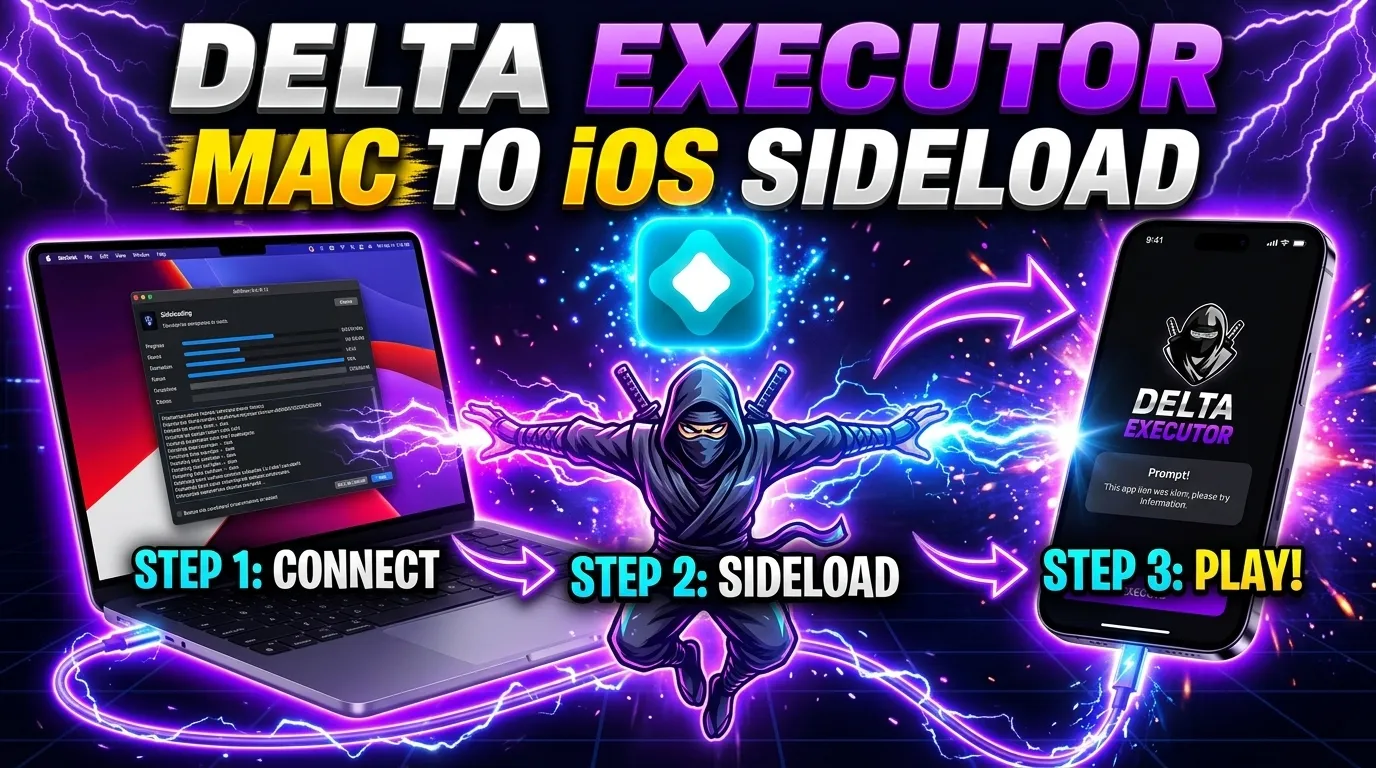
Connect your iOS device to your computer using a USB cable. On macOS, click the AltServer icon in the menu bar, select Install AltStore, and choose your device from the list. On Windows, click the AltServer icon in the system tray and follow the same steps. You will be prompted to enter your Apple ID and password. AltServer uses these credentials to generate a signing certificate -- your credentials are sent directly to Apple's servers and are not stored by AltStore.
After a moment, AltStore will appear on your home screen. Before opening it, go to Settings, then General, then VPN & Device Management, find the profile associated with your Apple ID, and tap Trust. This step is required for any sideloaded app to launch.
Step 3: Sideload the Delta Executor IPA
Open AltStore on your iPhone or iPad. Navigate to the My Apps tab. Tap the plus icon in the upper-left corner and browse to the Delta Executor IPA file you downloaded. If you downloaded it directly on your device, you can find it in the Files app. If you downloaded it on your computer, transfer it to your device using AirDrop, iCloud Drive, or a file transfer app.
AltStore will begin signing and installing Delta Executor. This process usually takes between 30 seconds and two minutes depending on your device and connection speed. Once complete, Delta Executor will appear on your home screen alongside your other apps.
Step 4: Trust the App Profile
If Delta Executor does not open after installation, you may need to trust its profile separately. Go to Settings, then General, then VPN & Device Management. Find the developer profile that matches the email you used and tap Trust. This tells iOS that you authorize apps signed with that certificate to run on your device.
Step 5: Launch and Configure Delta Executor
Tap the Delta Executor icon on your home screen. The first launch may take a few seconds longer as the app initializes. You will see the main interface where you can load scripts, access the script hub, and configure settings. The iOS version of Delta Executor supports most of the same scripts and features as the Android version, though performance may vary depending on your device model.
Understanding the 7-Day Signing Cycle
With a free Apple ID, every sideloaded app expires after seven days. When the certificate expires, Delta Executor will no longer launch. You will see an "app is no longer available" or "unable to verify" error when tapping the icon. This is normal and expected -- it does not mean your device has been compromised or that the app is broken.
To keep Delta Executor running, you need to re-sign it before or shortly after it expires. AltStore makes this straightforward. As long as AltServer is running on your computer and both your computer and iPhone are on the same Wi-Fi network, AltStore can refresh the app automatically in the background. You can also manually refresh by opening AltStore, going to My Apps, and tapping Refresh All.
Pro tip: Set a weekly reminder to ensure AltServer is running on your computer. If you forget and the certificate expires, you will need to connect your device via USB again to re-sign. Keeping AltServer set to launch at login eliminates most of this hassle.
If you have an Apple Developer account (which costs $99 per year), sideloaded apps last for a full year instead of seven days. This is a worthwhile investment if you sideload multiple apps regularly.
Method 2: Using Sideloadly as an Alternative
Sideloadly is another popular sideloading tool that works differently from AltStore. Instead of installing an app store on your device, Sideloadly signs and installs IPA files directly from your computer. It is a good option if you prefer a simpler setup or if AltStore gives you trouble.
How to Use Sideloadly
- Download Sideloadly from its official website and install it on your Mac or Windows PC.
- Connect your iPhone or iPad to your computer via USB.
- Open Sideloadly and drag the Delta Executor IPA file into the application window.
- Enter your Apple ID when prompted. Sideloadly will use your credentials to sign the app.
- Click Start and wait for the signing and installation to complete.
- On your device, trust the developer profile in Settings, then General, then VPN & Device Management.
The main downside of Sideloadly compared to AltStore is that it does not support automatic background re-signing. Every seven days, you need to reconnect your device to your computer and repeat the process. For users who do not want to keep AltServer running all the time, this manual approach may actually be preferable since there is no background process consuming resources on your computer.
Troubleshooting Common iOS Sideloading Issues
Even with careful setup, sideloading can occasionally run into problems. Here are the most common issues and their solutions. For broader troubleshooting beyond sideloading, check our guide on fixing Delta Executor when it is not working.
AltStore Says Maximum Number of Apps Reached
Free Apple IDs can sign only three apps simultaneously. If you already have three sideloaded apps (including AltStore itself, which counts as one), you need to remove one before installing Delta Executor. In AltStore, swipe left on an app in My Apps and tap Remove to free up a slot.
Installation Fails with a Provision Error
Provisioning errors usually mean there is a problem with your Apple ID or signing certificate. Try these steps in order: sign out of your Apple ID in AltStore and sign back in, restart AltServer on your computer, make sure your computer and device are on the same Wi-Fi network, and check that your Apple ID does not have two-factor authentication issues (you may need to generate an app-specific password).
Delta Executor Crashes on Launch
If the app crashes immediately after opening, the certificate may have expired or the profile may not be trusted. Check Settings, then General, then VPN & Device Management to verify the profile is present and trusted. If the profile is missing, the certificate has expired and you need to re-sign the app.
AltStore Cannot Find Your Device
On Windows, make sure iTunes and iCloud are installed from Apple's website (not the Microsoft Store versions). On macOS, ensure your device is unlocked and that you have tapped Trust on the device when the Trust This Computer dialog appeared. Try a different USB cable if the issue persists -- cheap cables sometimes only carry charge and not data.
Wi-Fi Refresh Is Not Working
For AltStore's wireless refresh to work, three conditions must be met: AltServer is running on your computer, your device and computer are connected to the same Wi-Fi network, and your network allows device discovery (some corporate or university networks block this). If wireless refresh consistently fails, try using a USB connection for manual refreshes.
Tips for a Smooth Delta Executor iOS Experience
Beyond the basic installation, there are several practices that will improve your experience running Delta Executor on iOS over the long term.
- Use a dedicated Apple ID. Create a separate Apple ID for sideloading. This protects your primary account in case Apple ever takes action against IDs used for sideloading, and it keeps your app library organized.
- Enable background app refresh for AltStore. In Settings, then General, then Background App Refresh, make sure AltStore is toggled on. This allows it to refresh your apps in the background when conditions are right.
- Keep AltServer updated. The AltStore team regularly releases updates that fix compatibility issues with new iOS versions. Running an outdated AltServer can cause signing failures.
- Download IPA files only from official sources. Third-party sites may host modified IPA files that contain malware or do not function correctly. Always use the official Delta Executor download page. For more information on security practices, read our article on whether Delta Executor is safe.
- Monitor your device storage. Sideloaded apps and their associated data can accumulate over time. Periodically check your storage usage in Settings to ensure you have adequate free space.
iOS Sideloading in 2026: What Has Changed
The sideloading landscape on iOS has evolved considerably. In the European Union, Apple has been required to allow alternative app marketplaces under the Digital Markets Act, which means users in the EU may have additional options for installing Delta Executor. However, outside the EU, sideloading through tools like AltStore and Sideloadly remains the primary method.
Apple has also made some changes to how developer certificates work. Starting with iOS 17, the trust dialog for developer profiles has moved to a more prominent location in Settings, making it slightly easier to find. The fundamental seven-day limitation for free accounts remains unchanged, however, and there are no signs that Apple plans to extend this period.
Another development worth noting is that Lua-based script execution on iOS has become more stable as Delta Executor's developers have optimized their engine for Apple's A-series and M-series chips. The current version of Delta Executor iOS delivers performance that is comparable to Android on equivalent hardware, which was not always the case in earlier releases.
Delta Executor iOS vs. Android: Key Differences
While both platforms run the same core Delta Executor engine, there are meaningful differences in the user experience. On Android, installation is a one-time process -- you download the APK, enable unknown sources, and install. On iOS, you commit to a recurring process that requires either a computer running AltServer or periodic manual re-signing.
Performance is generally comparable on modern devices. iPhones with A15 chips or newer handle script execution smoothly, and iPads with M-series chips offer an even better experience due to their larger memory and more powerful GPUs. Script compatibility is identical across platforms since Delta Executor uses the same Roblox scripting engine on both iOS and Android.
The primary advantage of iOS is stability. Apple's tightly controlled hardware and software ecosystem means fewer device-specific bugs and more predictable performance. The primary disadvantage is the sideloading overhead and the seven-day certificate limitation. For a detailed comparison with other executor options, see our overview of Delta Executor's features.
Frequently Asked Questions About Delta Executor iOS
Can I sideload Delta Executor without a computer?
There are some online signing services that claim to install IPA files without a computer, but these are unreliable and often revoked by Apple within hours. For a dependable installation, AltStore or Sideloadly with a computer is strongly recommended.
Will sideloading void my warranty or damage my device?
No. Sideloading uses Apple's own developer signing infrastructure and does not modify the operating system. It does not involve jailbreaking and does not void your warranty. The apps run in the same sandbox as App Store apps.
How many sideloaded apps can I have at once?
With a free Apple ID, you can have up to three sideloaded apps installed simultaneously, including AltStore itself. With a paid developer account ($99 per year), this limit is removed entirely.
What happens to my scripts when the certificate expires?
Your scripts and settings are preserved even when the certificate expires. Once you re-sign and reopen Delta Executor, everything will be exactly as you left it. The expiration only prevents the app from launching -- it does not delete any data.
Download Delta Executor for iOS
Get the latest IPA file and start sideloading today.
Download for iOS